Devices
Teltonika ATC700 user guide
How to charge and place ATC700, use its button and understand reporting intervals while moving and parked.
Teltonika ATC700 runs on its own battery and does not connect to the vehicle’s wiring. It can be moved between vehicles. A tracker bought from us is already configured for Mugav Auto GPS, with a SIM card installed.
How to charge and get started
- Connect the supplied USB-C cable to the tracker and a suitable USB power source. With the factory settings, connecting USB starts the device.
- Wait for charging to finish. With the standard indicators, a slowly pulsing yellow light means charging and a steady green light means fully charged. Do not confuse this with the brief green light at startup.
- Disconnect the cable and close the USB port’s protective plug.
- Place the tracker in the vehicle and check it in an open area. Sign in to Mugav Auto GPS, select the vehicle and check for fresh data.
- Take a short drive. The route is recorded at the selected interval rather than continuously, so the map shows separate points along the trip. See Using the app for help reading the data.
Charge the device at 0 to +45 °C. Let it warm up after parking in cold conditions; the connector must be dry before charging. Use the indicator to tell when charging is complete.
USB operation and the button
With the factory power setting, the device can operate and send data while connected to USB. However, the charging light does not confirm that coordinates have been sent: check the data time in the system.
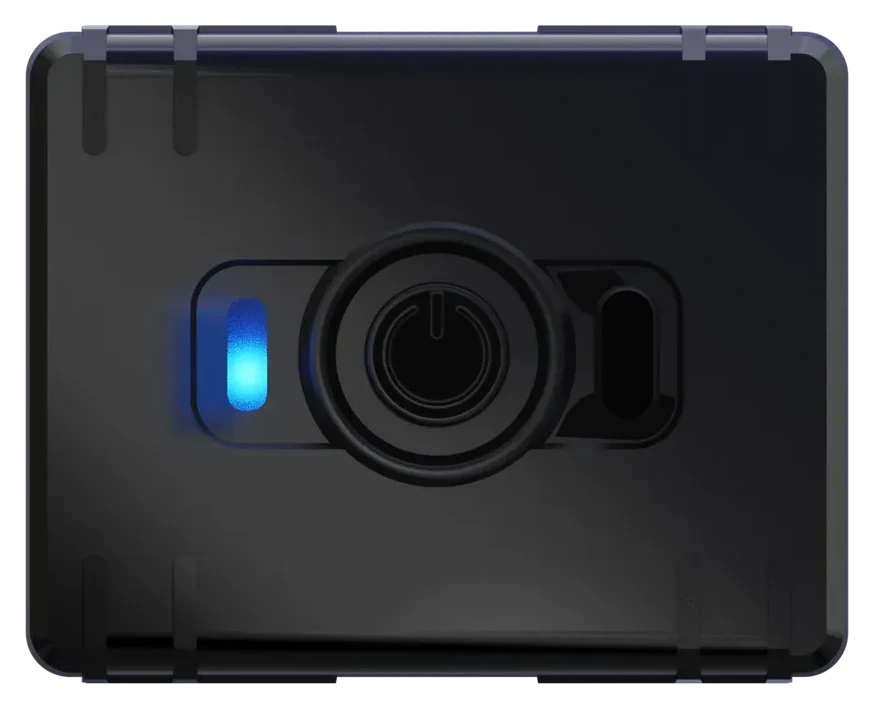
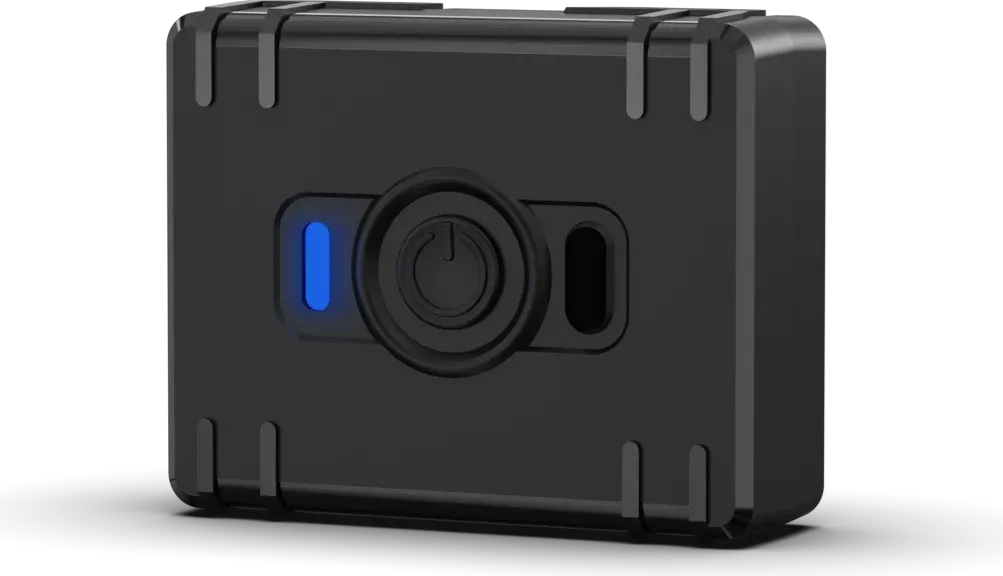
You do not need to switch the tracker off for normal use. With the factory settings, hold the button for more than five seconds to switch it off. You can connect USB-C to start it again. With factory settings, a short press is not a command to update the coordinates immediately. The button’s alarm functions are not configured in our service.
You can also charge ATC700 from a power bank. If you want to use it permanently with an external battery, write to us: the dedicated power bank mode has a separate setting and requires a USB-C to USB-C cable. Connecting any external battery does not mean this mode is already enabled.
Where to place it
Choose a dry place where the housing will not slide, fall or interfere with driving. Secure it. A metal box or large metal part above the device may weaken satellite reception.
Carry out the first check in an open area. Do not immerse the tracker in water; close the USB port with its protective plug after charging.
How often data appears
| Mugav Auto profile | While moving | While parked |
|---|---|---|
| Standard | Every 5 minutes | Once a day |
| Detailed route, on request | Every minute | Once a day |
These are our profiles, not a universal factory schedule. If you agreed on a different mode when purchasing, follow that mode.
The more often the tracker determines its position and sends data, the faster the battery is used. Battery life also depends on connectivity, temperature and movement. With a five-minute interval, short trips may appear in less detail. Write to us to change the mode.
If there is no fresh data
Check the charge and that the device is on, then its placement and the time of the latest data. While parked, a one-day gap matches the standard profile. If the tracker is known to be moving but there is no data, check it in an open area and contact us.
Email klienditugi@mugavauto.ee with the vehicle, model, when the tracker was charged and when it last sent data. You can check our system’s address in the app using the signing-in instructions.
Main technical data
| Parameter | Value |
|---|---|
| Mobile network | 4G LTE Cat 1 with 2G support |
| Battery | Li-Po, 1000 mAh |
| Charging | USB-C |
| Charging temperature | 0…+45 °C |
| Connection to vehicle wiring | Not required |
Teltonika ATC700 first-start instructions · Power and button · Manufacturer’s manual