
GPS tracking system
Trip history and reports
View trips, stops and distance travelled, choose a period and download a report as an Excel file.
In Mugav Auto GPS, you can view your vehicle’s trips and stops, check the distance travelled over a chosen period and save a report as an Excel file.
Choose a report
Start with the three main reports: Trips, Stops and Summary.
| Menu item | What it is for |
|---|---|
| Trips | View individual trips: when the vehicle set off and arrived, how long the trip took and how far it travelled |
| Stops | Find where the vehicle stopped, when the stop began and ended, and how long it lasted |
| Summary | Check the total distance travelled over a day, week or month without looking through individual trips |
| Replay | View a recorded route on the map |
| Positions | View individual recorded positions: time, coordinates and speed |
| Events | View recorded events, such as entering or leaving an area defined on the map |
| Geofences | View visits to geofences — areas defined on the map in advance |
| Chart | Plot an available value, such as speed, on a chart |
| Combined | View events and the route positions associated with them on one screen |
The reports and data available depend on your account permissions and your tracker’s capabilities.
Display a report
- In Mugav Auto GPS, open Reports. This tab is at the bottom of the map view.
- Choose Trips, Stops or Summary from the reports menu.
- Select your vehicle in Devices. For a report covering several vehicles, select all the vehicles you need.
- In Period, choose Today, This Week or This Month.
- Select Show and wait for the table to appear.
The button labels follow the English interface shown in the screenshots. Labels may differ if you use another language.
Use Columns to choose which columns appear in the table. For Trips, Stops and Summary, the same columns will appear in the Excel file.
To view yesterday, choose Today, select the left arrow next to the date once, then select Show.
For another period, choose Custom. Enter the start and end dates and times in From and To, then select Show. If you change the vehicle or period, select Show again.
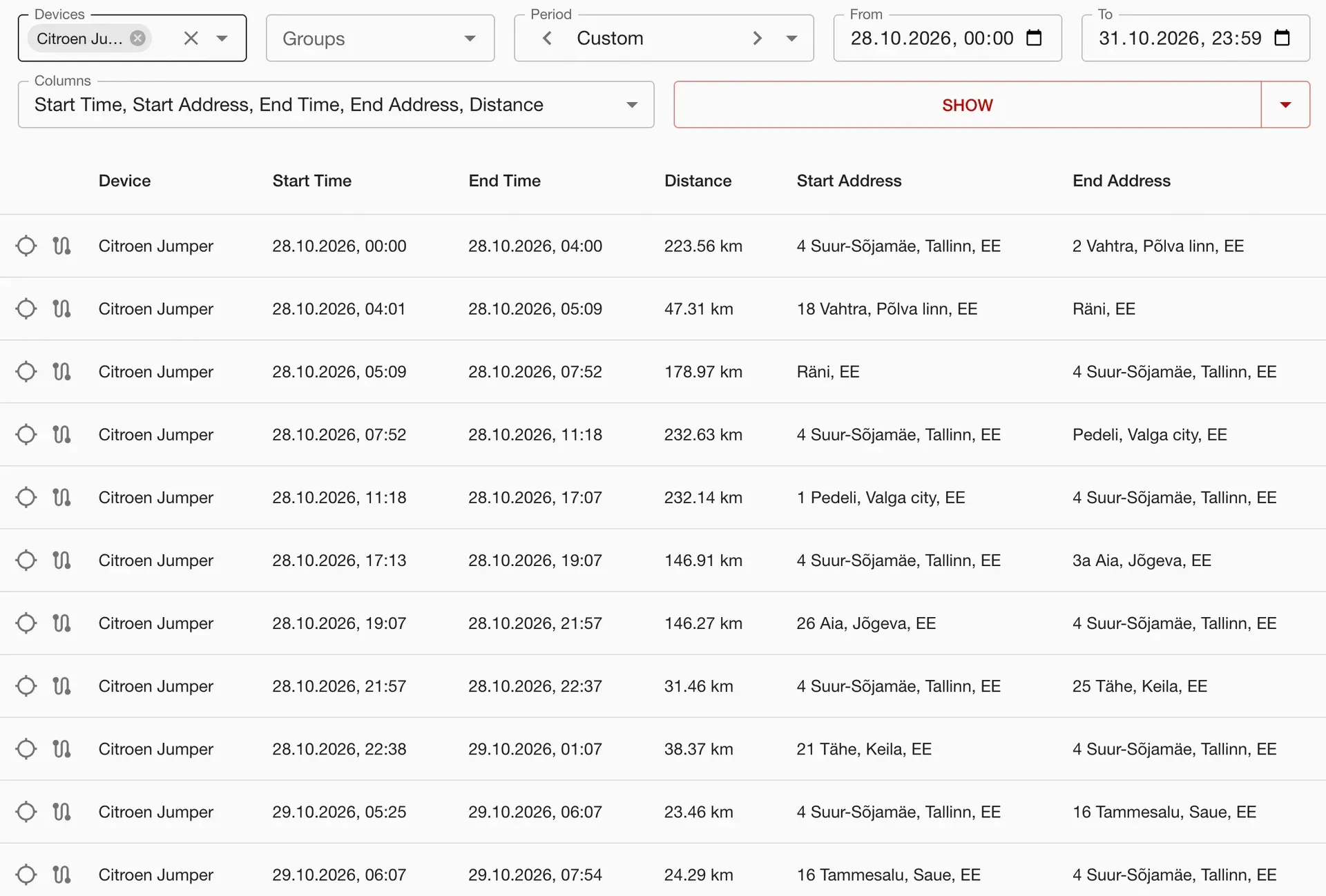
View a trip’s route
In Trips, find the trip you want in the table. Select the crosshair icon at the start of its row to display the route on the map. The icon to the right of the crosshair opens Replay for the same trip.
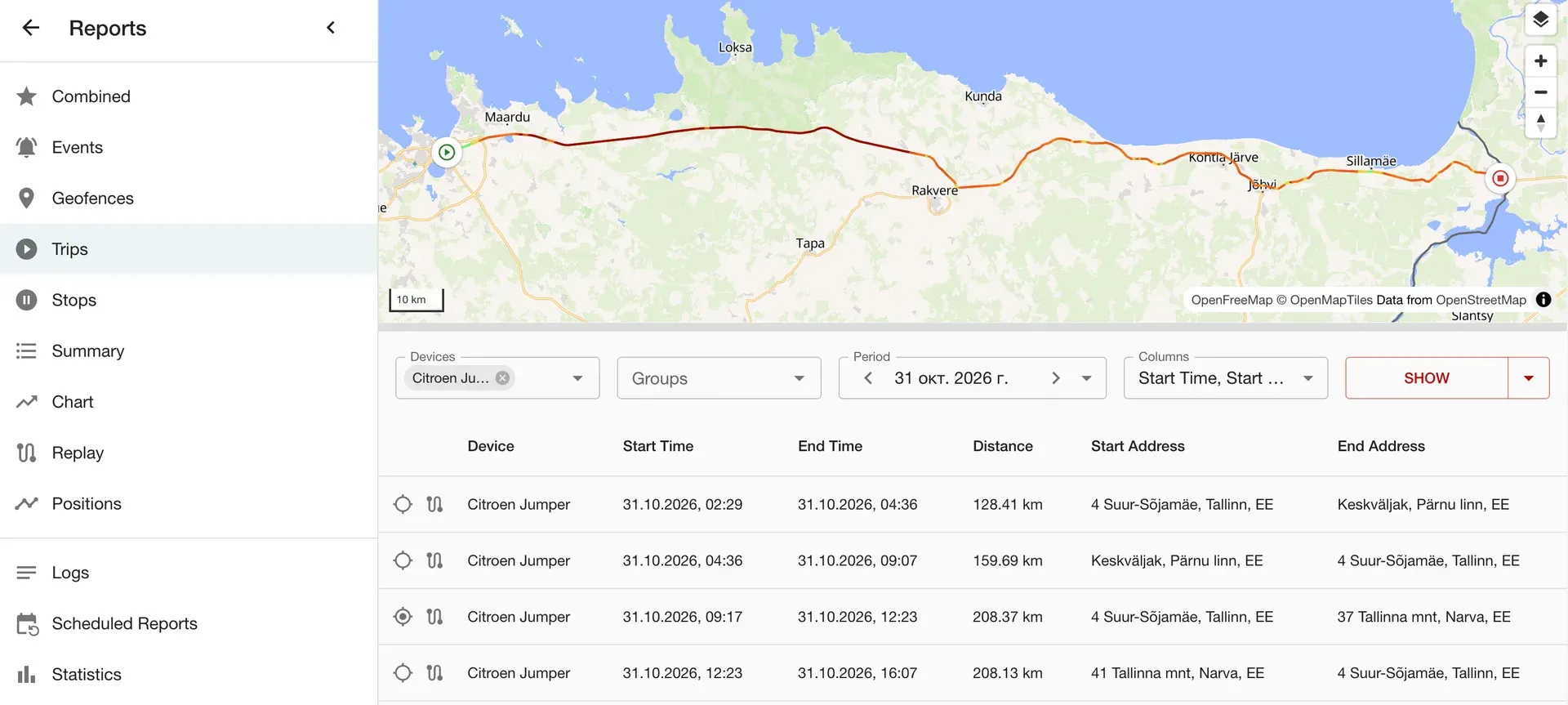
The system identifies trips and stops from recorded data. Short movements and stops may not appear as separate rows.
Check the distance travelled in a month
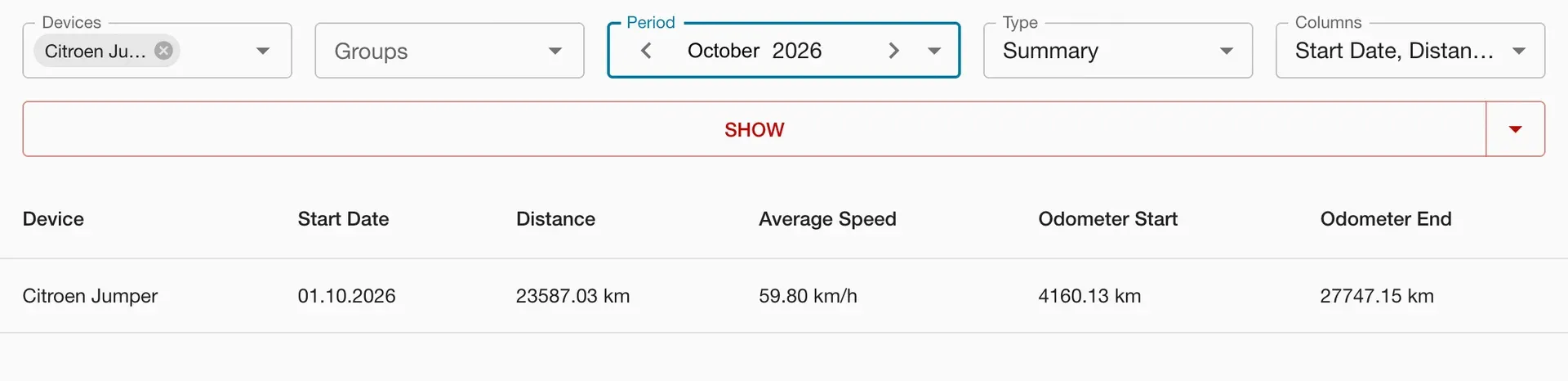
Open Summary. In Period, choose This Month. In Type, choose Summary, then select Show.
The Distance column shows the distance travelled over the selected period.
Download a report as an Excel file
- Choose the vehicle and period, select Show and wait for the results.
- At the top of the report, select the small arrow to the right of Show. The actions menu will open.
- Choose Export (XLSX). The Excel file will start downloading. Save it on your device.
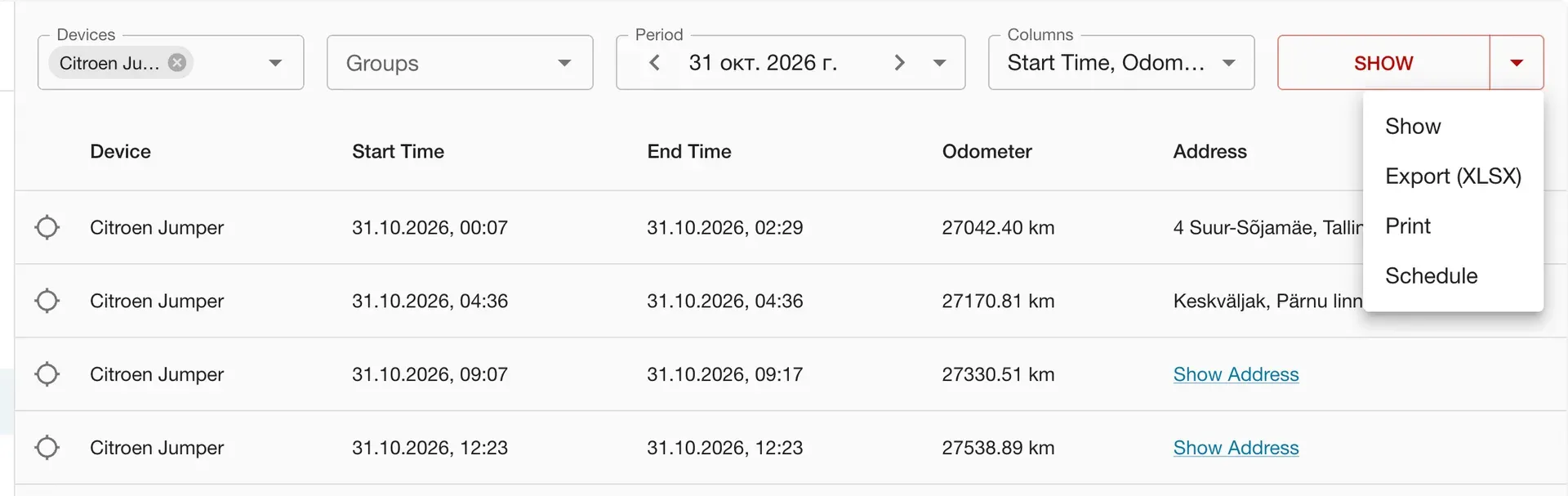
| Action | What happens |
|---|---|
| Show | Displays the report on screen |
| Export (XLSX) | Saves the report as an Excel file |
| Opens the report’s print window | |
| Schedule | Sets up a scheduled report; this requires a separately defined calendar |
The export option appears after you generate the report. If you change the vehicle or period, select Show again before downloading.
If the table is empty
Check that you have selected the right vehicle and dates. If the vehicle was parked throughout the period, there may be no trips in Trips. You can view stops in Stops.
History is normally kept for 24 months, so data for an earlier period may no longer be available. If the tracker stopped sending records for a while, they may arrive later when the connection is restored.
If a recent trip is missing from the report, check when the tracker was last connected. See Using the app for instructions.
If you cannot resolve the issue, email us at klienditugi@mugavauto.ee or use the contact page. Tell us which vehicle, report and dates you selected, and what you see on screen.