For businesses
Driving log (sõidupäevik) from GPS reports in Excel
Use GPS trip and mileage reports as the basis for a driving log. Learn how to export an Excel file and add the purpose of each trip.
When preparing a driving log (sõidupäevik), it can be tedious to remember afterwards when a car was used and how far it travelled. Mugav Auto GPS reports help you find those details: you can view trips, stops and mileage, then save the results as an Excel file. Your company adds the explanations behind the trips.
If you are looking for an electronic driving log, start by separating two things: the recorded vehicle movements and your company’s explanation of why each trip took place. Our system’s report provides a basis for the first part. A route alone does not tell you whether the driver visited a customer, delivered goods or made a private trip.
Is a driving log compulsory?
According to the Estonian Tax and Customs Board (EMTA), a driving log is not required for an employer’s passenger car because private trips cannot be reimbursed on the basis of usage records. If the employer wishes to demonstrate that the car is used solely for business purposes and work trips, they can keep a driving log, including an electronic GPS log. Where this exclusive use is proven, no fringe benefit arises.
EMTA’s guidance on keeping vehicle-use records leaves the choice of recording method to the business: examples include a detailed driving log or a third-party GPS service.
Our GPS report provides the underlying movement data; your company adds trip purposes and supporting evidence. For details, consult EMTA’s guidance or your accountant.
What data a GPS report provides
Three main reports are useful when preparing a driving log. Choose the one that answers your question.
| Report | What it contains | How it helps |
|---|---|---|
| Trips | Trip start and end times, duration and distance travelled | Find an individual trip and view its route on the map |
| Stops | Stop location, start and end times, and duration | Check where the car stopped and for how long |
| Summary | Mileage for a selected period | Get an overview of vehicle use, for example over a month |
You can create a report for one or several cars. Each tracked car needs its own tracker. A company with several vehicles can view their movements in one system without using a separate solution for each car.
What your company adds
A GPS tracker records movement, but it does not know the purpose of a trip. A stop at a shop, for instance, does not tell you whether the driver bought tools for work or personal items. The vehicle’s location alone does not explain who was driving, either.
Agree within your company who will review the reports and add explanations. Useful details to include in your working file might be:
- the purpose of the trip, such as a delivery or customer meeting;
- the customer or job the trip related to;
- the driver’s name if several people use the car;
- your company’s own note identifying a business or private trip.
These are suggestions for organising your work, rather than automatic fields in our report or an official driving log template. Add explanations to a working copy of the exported report, for example. This keeps the recorded movements clearly separate from your own notes.
How to turn a report into a working file
Start with one car and a short period you are familiar with. This makes it easier to check what the table shows before working with a whole month or several vehicles.
- Generate a trip report for the car and period you need, then download it using Export (XLSX).
- Save the original file and make a working copy for your company’s explanations.
- Review the trips and add their purposes and any other notes your work requires.
For the Trips, Stops and Summary reports, the table columns selected under Columns are also included in the Excel file. See “Trip history and reports” for detailed export instructions and screenshots.
Example: one car, several tasks
Suppose a company car visited a supplier in the morning, then a customer, and the driver made a private trip in the evening. Trips helps you find the journeys, while Stops shows the stops. Summary provides total mileage for the selected period.
The driver or another responsible person adds notes to the working file to identify the supplier visit, customer visit and private trip. If several people used the car during the day, the company adds that explanation too. The route recorded by GPS helps jog your memory, but a person needs to add the purpose of the trip.
If a trip is missing or the route is inaccurate
First check the selected car, dates and time of the last data transmission. See “Using the app” for instructions. After a connection loss, data may arrive later; until then, the overview may be incomplete. Read more in “How a GPS tracker works”.
Route detail also depends on the recording and transmission settings. The system identifies trips and stops from the data it receives; short movements or stops may not appear as separate rows. Check unclear sections against the map and the driver’s explanation.
What a GPS report does not include
A trip report does not show fuel consumption. Connecting a tracker to the OBD port does not automatically mean it reads the vehicle’s odometer, either: the FMB020, for example, uses the port for power and calculates mileage using GPS.
The tracker’s button, for example on the FMP100, does not split journeys into business and private trips: this has not been configured in our service.
Choosing a tracker for a company car
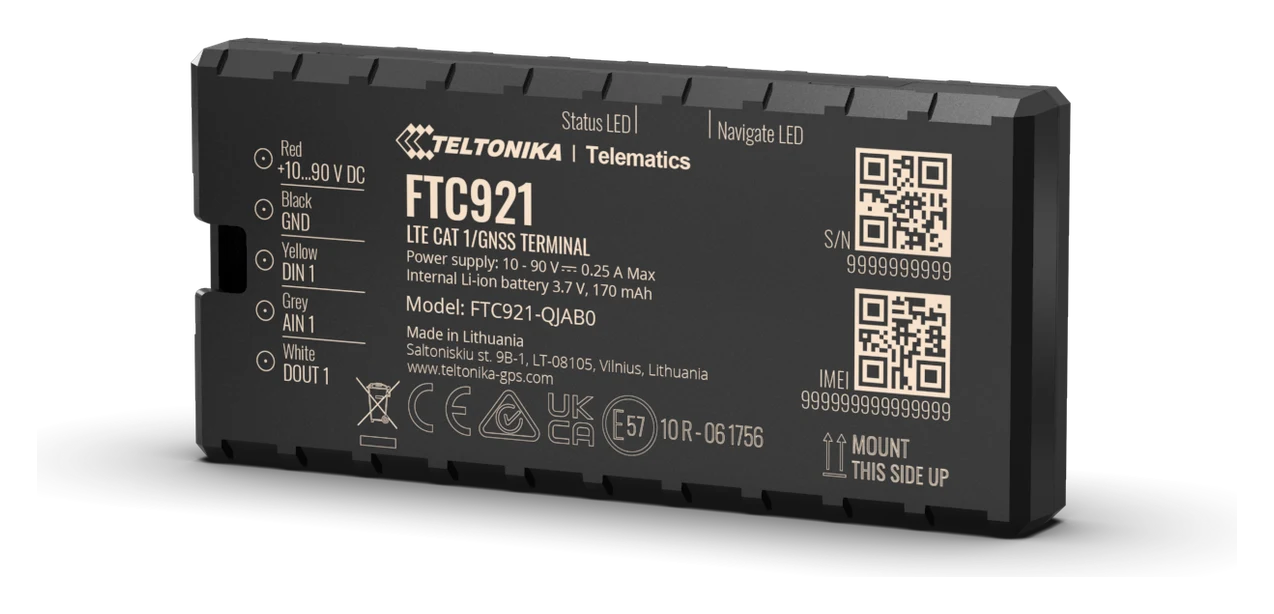
For permanent installation, consider the Teltonika FTC921. It is installed under the dashboard and powered by the car, so you do not need to remove it for regular charging. For information on notifying employees, see “GPS tracking in company cars”.
Before choosing, explore the demo system and consider whether you need individual trip details, monthly mileage or both. To discuss how the reports could help with your working practices, get in touch through our contact page.