
GPS tracking system
Notifications
Receive emails about leaving a geofence or exceeding a speed limit, and check or change your notifications.
In Mugav Auto GPS, you can receive emails when your vehicle leaves a defined area or exceeds a set speed limit. Emails are sent to the address associated with your account.
Open Mugav Auto GPS. The button labels below follow the English interface shown in the screenshots.
Leaving a geofence
A geofence is an area you define on the map, such as a yard, car park or business premises. The system can notify you when your vehicle leaves that area.
1. Mark the area on the map
- Open Settings → Geofences.
- Find the place you want and zoom in on the map.
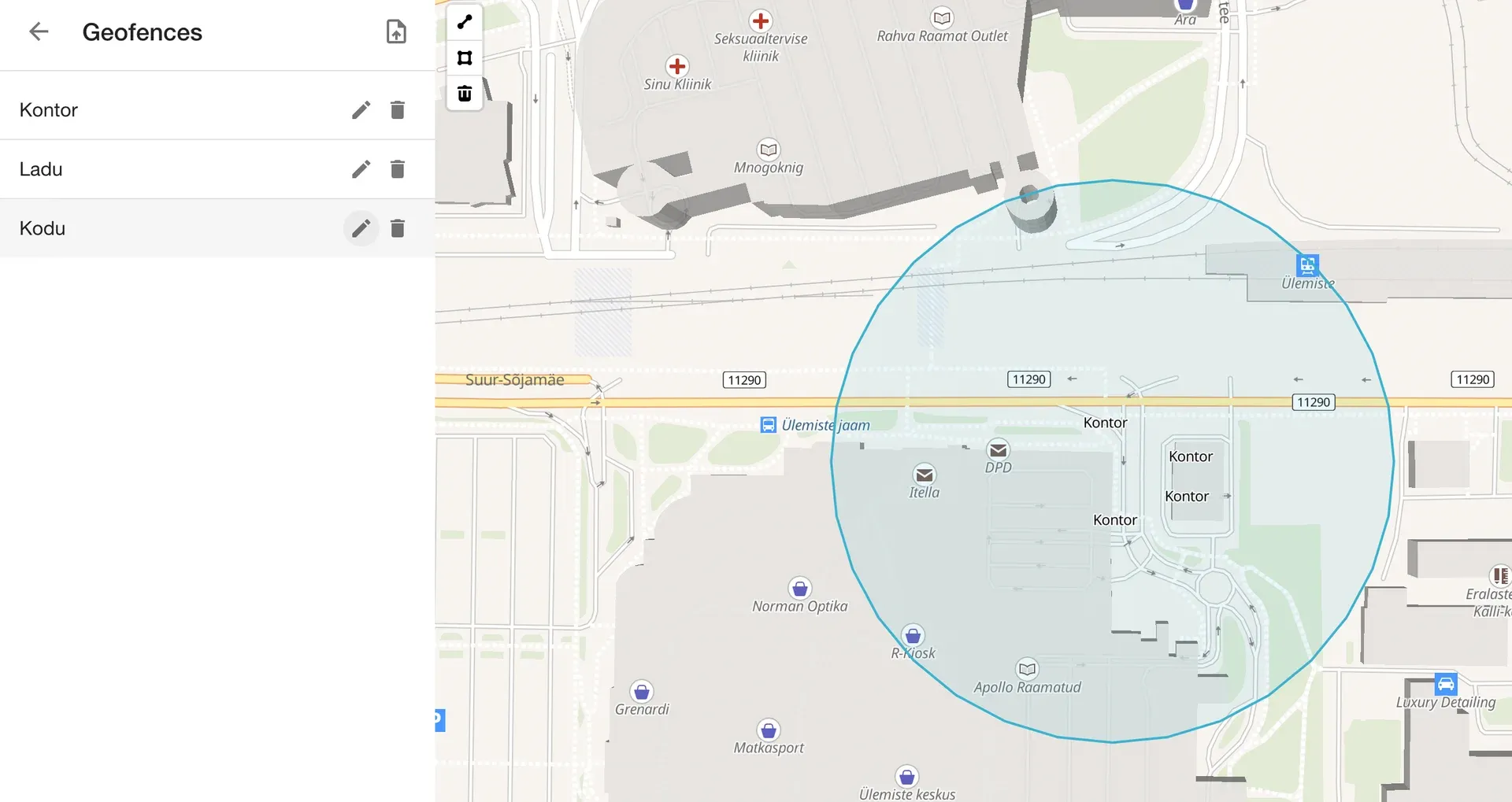
- Select the polygon drawing tool. Click on the map to mark the corners of the area. To close the outline, click the first point.
- In the form that opens, enter a name in Name and select Save. In our example, the area is called Kontor (“Office”).
2. Create a notification
- Open Settings → Notifications and select + in the bottom-right corner.
- In Type, choose Geofence exited.
- In Channels, choose Email to receive notifications by email. The screenshots also show Web selected: these are messages in the system while it is open.
- For notifications about one vehicle, clear All Devices.
- Expand Extra. Enter a clear name in Description, such as “Leaving the office — Citroen”.
- In Geofences, choose your area — Kontor in this example. This selects the area you want emails about. We will link the area itself to the vehicle in the next section.
- Leave Calendar empty if you want notifications at any time. Select Save.
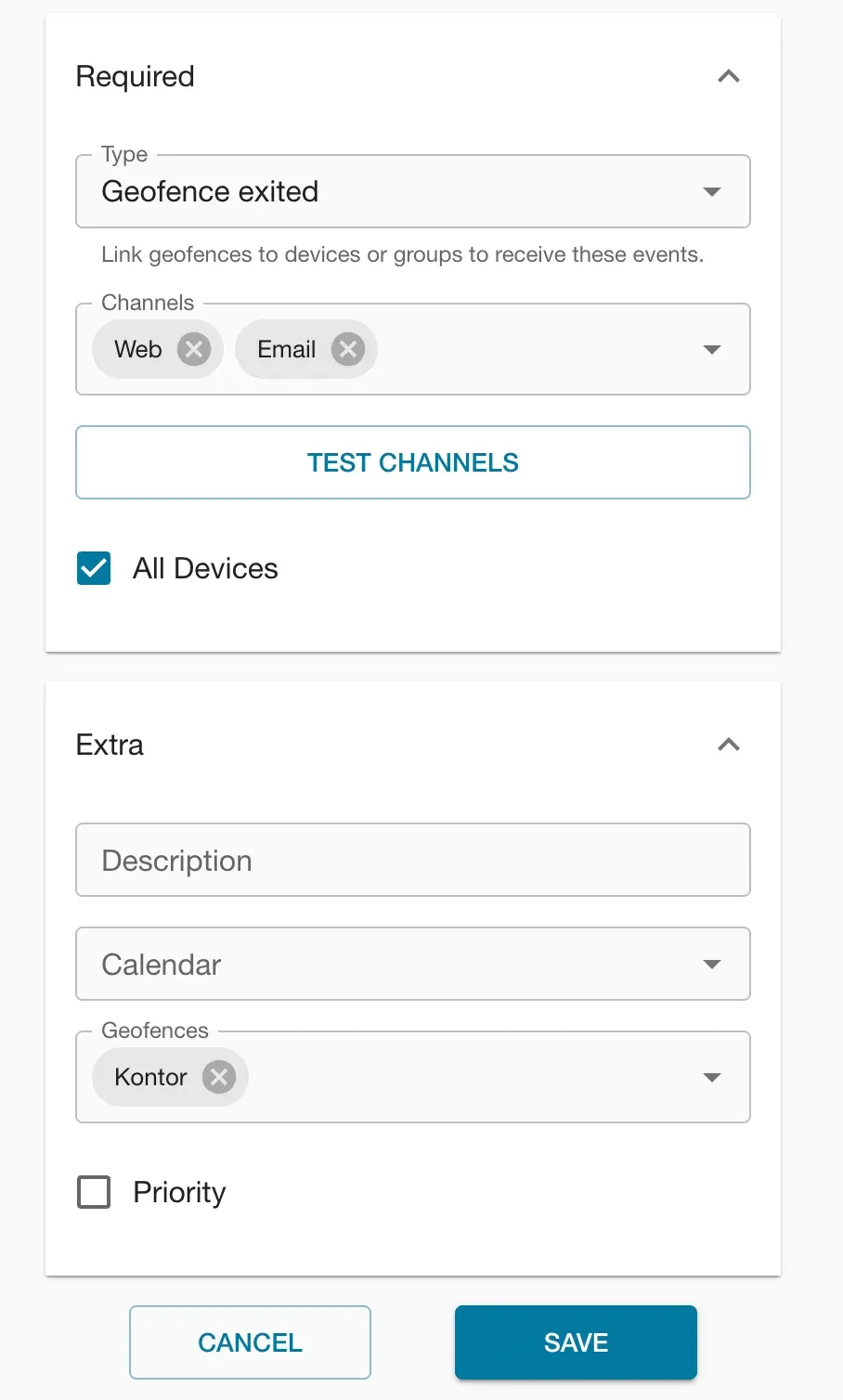
In the screenshot, All Devices is selected: the notification applies to all vehicles you can access. For one vehicle, clear the checkbox and choose the vehicle as described below. The checkbox controls which vehicles are included, not when the notification operates.
3. Link the settings to the vehicle
- Open Settings → Devices.
- Choose Connections for the vehicle you want. On a phone, this option is in the ⋮ menu on the vehicle’s row.
- In Geofences, choose your area — Kontor. The screenshot shows several areas selected; Kontor is enough for this example.
- In Notifications, choose the notification you created by its name. Changes are saved automatically.
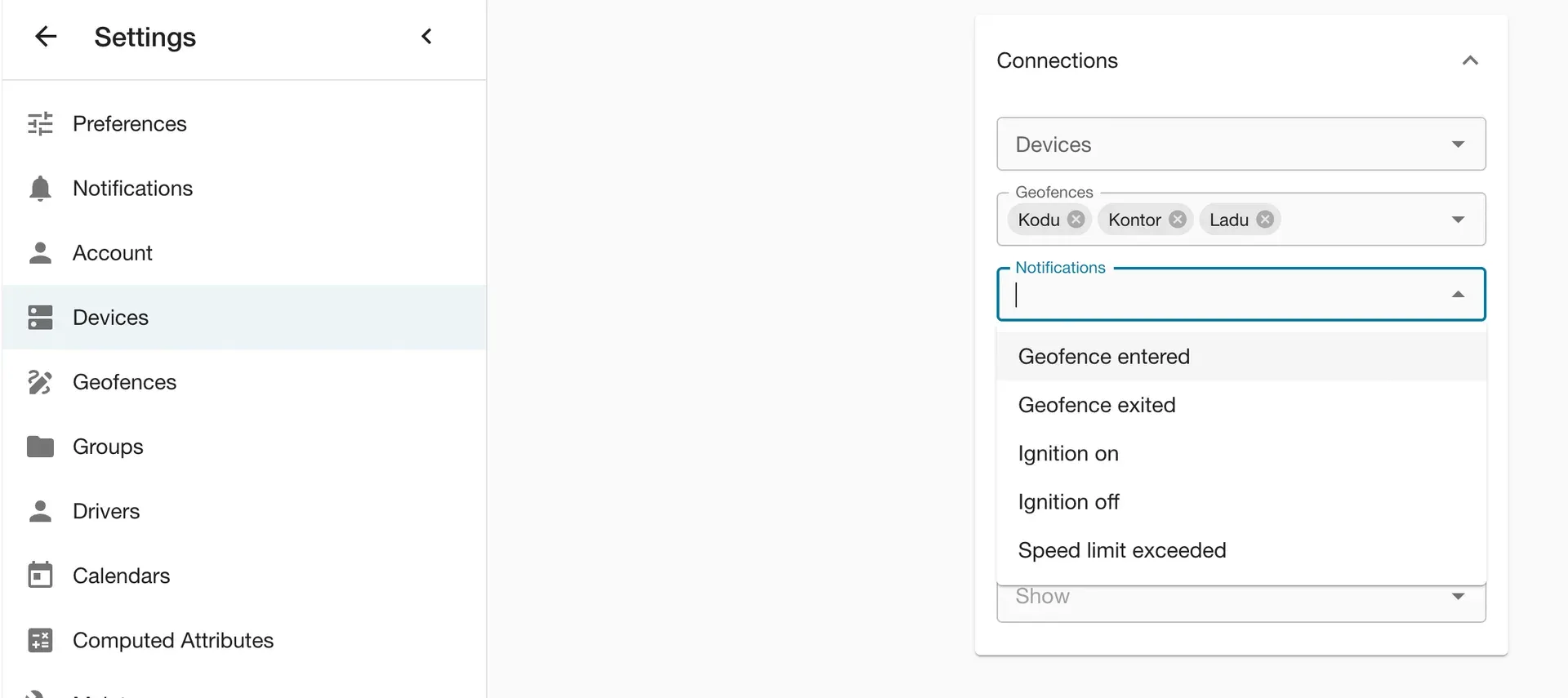
The screenshot shows the Notifications list open for selection. If the description is empty, the notification is shown by its type, such as Geofence exited. Select the item you want so it appears in the field.
Link the area to the vehicle in Geofences even if you have already selected it in the notification itself. If All Devices is selected, you do not need to select the notification separately in Notifications. For another vehicle, repeat the selection in that vehicle’s Connections.
The system detects an exit when the coordinates it receives show movement from inside the area to outside it.
Exceeding a speed limit
We set the speed threshold. Email us at klienditugi@mugavauto.ee with the vehicle and the threshold you want. After we confirm the setting, configure the notification:
- Open Settings → Notifications and select +.
- In Type, choose Speed limit exceeded. Do not choose Alarm — it is a different event type.
- In Channels, choose Email. For one vehicle, clear All Devices.
- Enter a name in Extra → Description, such as “Speed — Citroen”. Leave Calendar empty for notifications at any time. Select Save.
- Open Settings → Devices → Connections for the vehicle you want and select this notification in Notifications. The selection is saved automatically. If All Devices is selected, you do not need to select the notification for the vehicle.
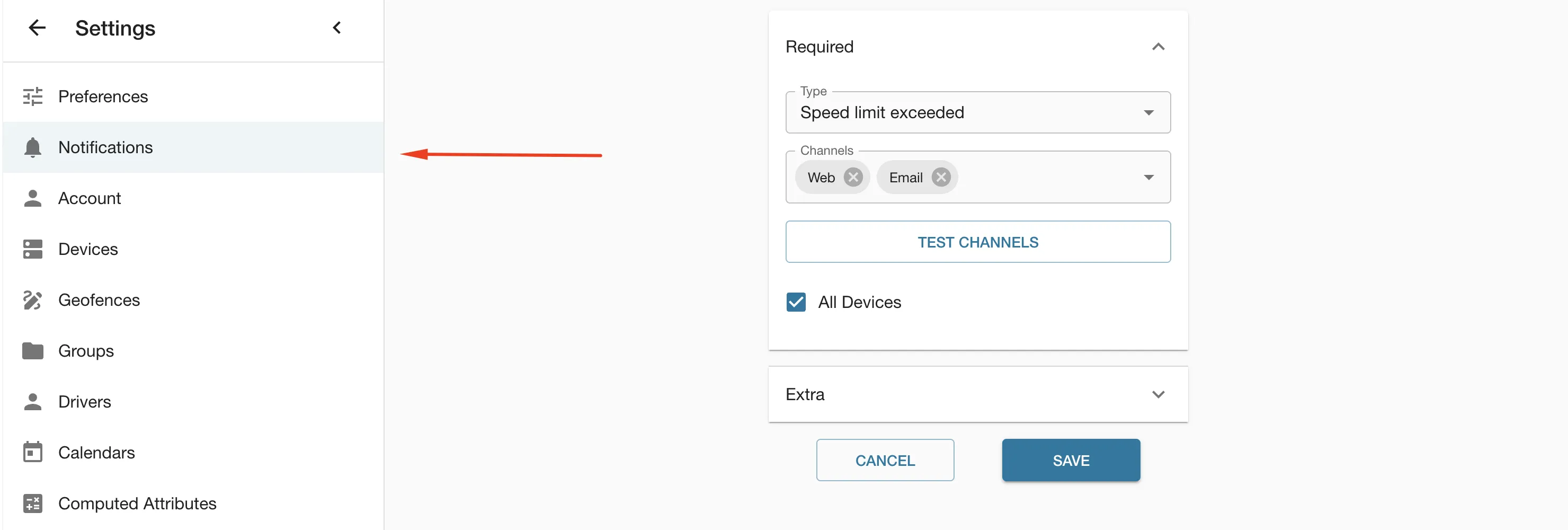
For example, with a threshold of 90 km/h, the system reports speeds above that value. The notification does not determine the legal speed limit on each road. If you need to change the threshold, email us: it cannot be changed in the notification form.
Check a notification
Open your notification, make sure Email is selected and select Test Channels to send a test email. Check the account’s inbox and spam folder. Receiving the email confirms delivery, but does not confirm that the geofence, speed threshold or vehicle link is correct.
When a new event occurs, check whether an email arrived. To check whether the event was recorded, open Reports → Events and choose the vehicle and period. See Trip history and reports for instructions.
Notifications apply to new events: setting them up does not send emails for past trips. Sending an email depends on data arriving from the tracker, so the email may be delayed. If the tracker sends positions infrequently, a brief event may not be recorded.
Change or turn off a notification
Find the notification in Settings → Notifications and select the pencil icon. On a phone, choose Edit from the ⋮ menu. After making changes, select Save.
To turn off a notification for one vehicle, remove it from Notifications in that vehicle’s Connections. This works when All Devices is cleared. If it is selected, the notification applies even without that link. Clear All Devices, select Save, then use Connections to choose the vehicles for which the notification should remain active.
If an email did not arrive
- No test email. Check the account’s email address and spam folder.
- The test email arrived, but there is no email about the event. Check the notification type, Email channel and vehicle selection. For an exit, check the geofence and its link to the vehicle; for speed, check the set threshold. A selected calendar may limit when the notification operates.
- The event is also missing from Events. Check whether new data is arriving from the tracker. See Using the app for instructions.
If you cannot resolve the issue, email us at klienditugi@mugavauto.ee or use the contact page. Include the vehicle, notification name, the time of the expected event and whether the test email arrived.