
GPS tracking system
Using the app
Select your vehicle, understand its connection status and check why its data is not updating.
After signing in, select your vehicle to see where it is.
Find your vehicle
- Sign in to Mugav Auto GPS through the app or a browser. If you need help, open the sign-in guide.
- The app opens on the map by default. If you have moved to another section, select Map to return.
- If your vehicle is not visible on the left, select the Search Devices field to open the list. Select your vehicle’s name. If you have just one vehicle, you do not need to type its name. If you have several, enter the name of the vehicle you want.
- The selected vehicle and its information card will appear on the map. Check the name on the card to make sure you have selected the right vehicle.
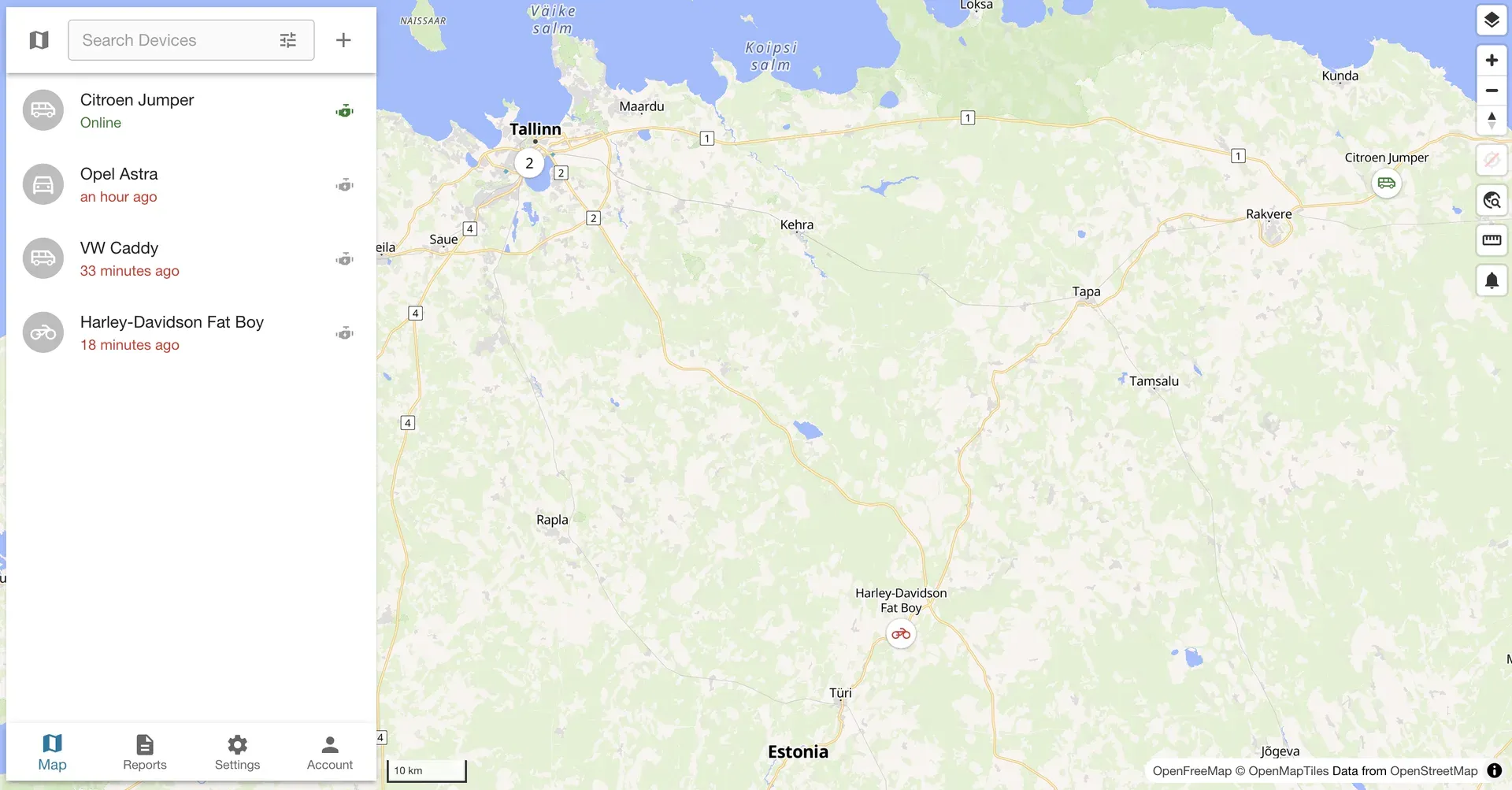
The screenshots show the English interface. Labels may differ if you use another language.
Read the vehicle’s information card
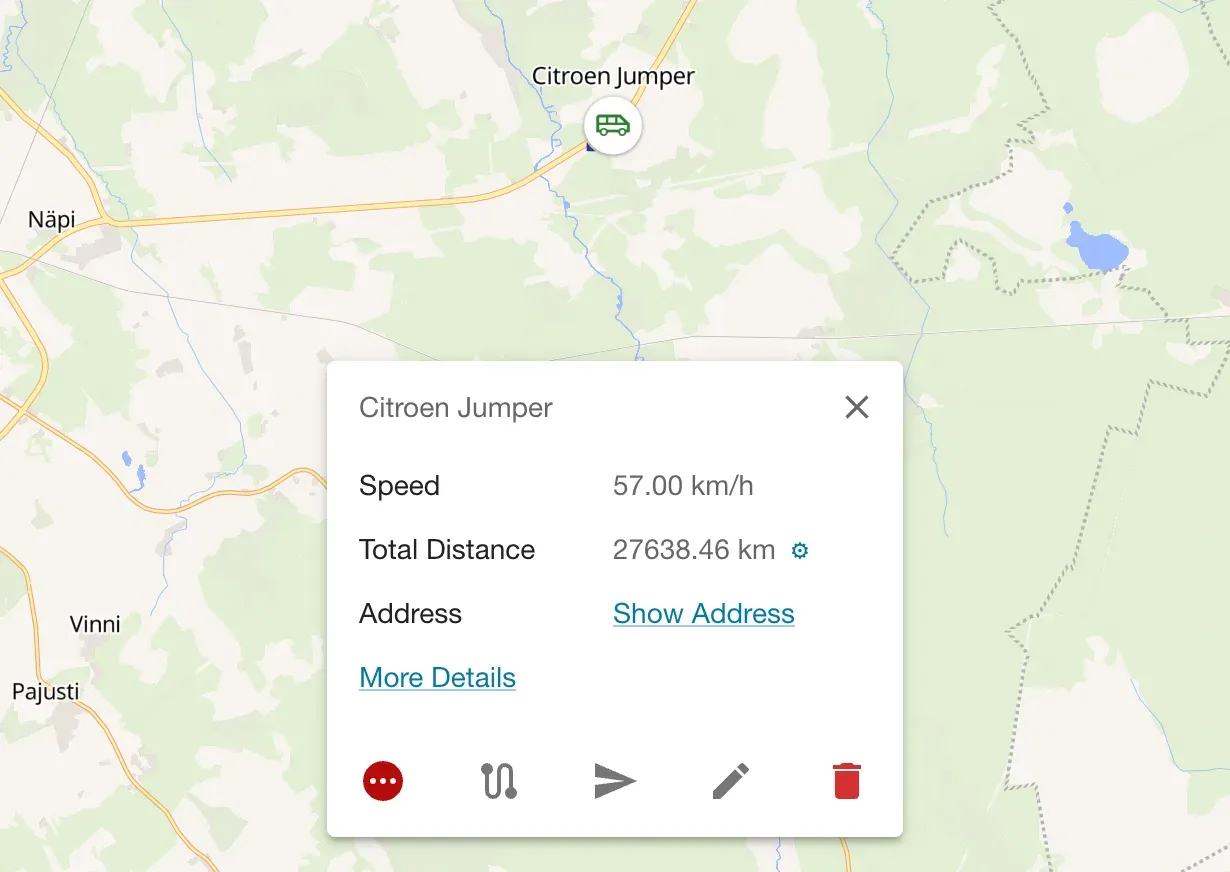
- Speed — the vehicle’s speed when the data was recorded. The example shows 57 km/h.
- Total Distance — the total distance accumulated in the system. This is not the distance for a day or month you have selected.
- Address — the address of the recorded location. If Show Address appears instead, select it.
- More Details — details of the selected position. Fix Time shows when the tracker determined its coordinates.
To close the card, select the cross in its top-right corner.
Understand the connection status
The text below the vehicle’s name shows whether the tracker is connected to the server. Online means it is connected. Offline means there is no connection at the moment.
Instead of Online, you may see 20 minutes ago or an hour ago. This shows how long it has been since the tracker was last in contact.
With our settings, the tracker works as follows:
- While driving. The tracker sends data more frequently, appears Online and shows the vehicle’s movement on the map.
- While parked. The tracker sends data less frequently. It may be Offline between updates and briefly come Online to send its coordinates.
Trackers powered by the vehicle normally send updates once an hour while parked. With a daily setting, the gap can be up to 24 hours. The battery-powered ATC700 sends updates once every 24 hours while parked as standard.
For a parked vehicle, Offline and “20 minutes ago” can be a normal gap between updates. Compare the time below the vehicle’s name with your tracker’s interval. If you know the vehicle is moving, check its speed and whether its position changes on the map.
If mobile coverage is temporarily lost, recorded data may arrive later when the connection returns.
If the vehicle is visible but its data is not updating
If the vehicle is moving but the tracker stays Offline and its data is not updating, check the items below. Do the same if a gap while parked is noticeably longer than the configured interval.
- The time below the vehicle’s name. Is it within the usual parked interval of an hour or 24 hours? Has the vehicle moved since the last update?
- Power. For the FMP100, check whether the cigarette lighter socket supplies power while the vehicle is parked. For the battery-powered ATC700, check the battery charge.
- Mobile coverage. Data may be delayed in areas without coverage.
- Your service period. Location updates stop when the paid period ends.
If you cannot find the cause, contact us and include:
- the vehicle’s name in your account;
- the time of its latest data;
- when you noticed the problem;
- whether the vehicle was moving;
- whether any work has recently been done on its electrical system.
This will help us check whether the issue concerns power, connection or access. Email klienditugi@mugavauto.ee or use our contact page.
If your vehicle is missing from the list
Select the Search Devices field and check the list. If the vehicle is missing, make sure you signed in with your email address to Mugav Auto GPS: the Mugav Auto logo should be on the sign-in screen. The sign-in guide explains how to check the server.
If you signed in to the correct system but the vehicle is still missing, contact us. Tell us your account’s email address and which vehicle should be available. You do not need to send your password.