Devices
Teltonika FMB020 installation guide
How to connect FMB020 to the OBD port, check power, understand the indicators and confirm that data is arriving.
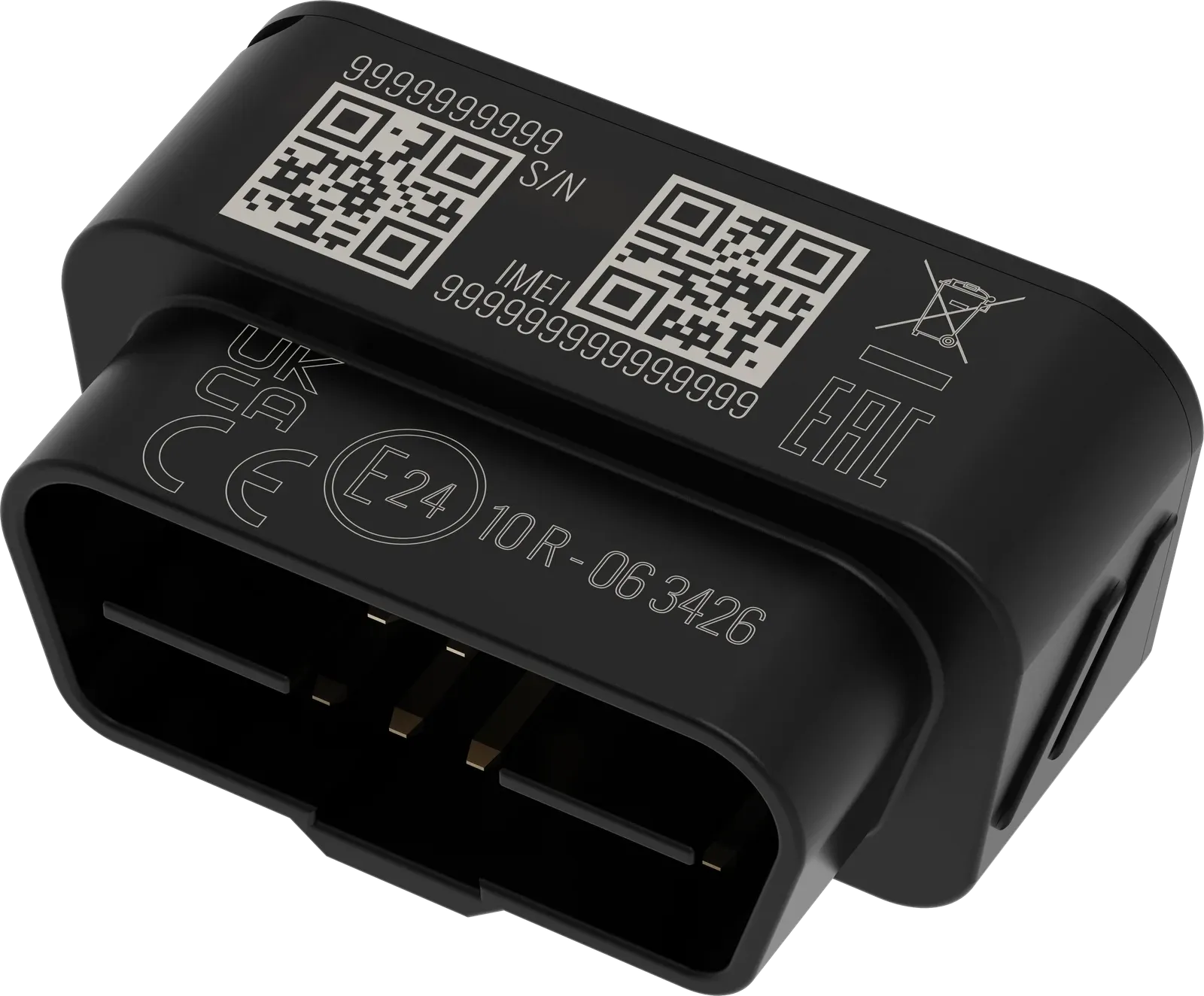
Teltonika FMB020 plugs into the vehicle’s diagnostic port. No separate wires are needed. A tracker bought from us is already configured for Mugav Auto GPS, with a SIM card inside.
Find the port
OBD is a diagnostic port with 16 contacts. It is usually under the dashboard on the driver’s side, sometimes behind a small cover. See the vehicle’s handbook for the exact location.
Before installing, check that the tracker will not obstruct your feet, pedals, steering or the dashboard panel. If the tracker would interfere with driving in this position, do not install it there: contact us to find a suitable placement, or book an installation.
How to connect
- Stop the vehicle and switch off the ignition.
- Open access to the OBD port. Align the plug with the socket and insert the tracker straight. Do not use force.
- Check that the device is held securely and does not interfere with driving.
- Switch on the ignition and place the vehicle in an open area. Wait for the tracker to determine its location.
- Sign in to Mugav Auto GPS, select your vehicle and check for fresh data. Then check a short drive using Using the app.
Remove the device with the ignition switched off. Pull on the housing without rocking it forcefully.
You do not need to open the housing, change the SIM card or configure the device on a computer to connect it.
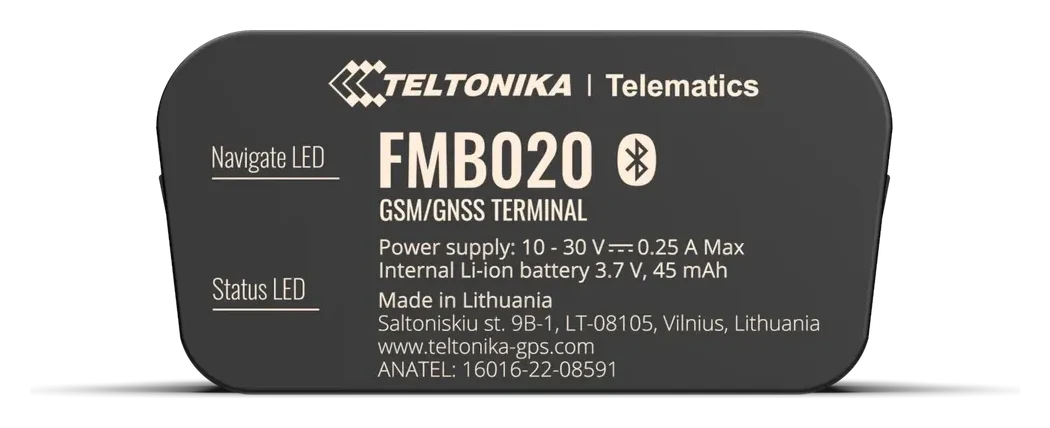
What the indicators mean
| Indicator | What you see | Meaning |
|---|---|---|
| NAVIGATION | Flashes once a second | Satellite coordinates have been obtained |
| NAVIGATION | Steady light | Coordinates have not yet been obtained |
| NAVIGATION | Off | The satellite module is off, for example because the device is asleep or not operating |
| STATUS | Flashes once a second | Normal operation |
| STATUS | Flashes once every two seconds | Sleep mode |
The indicators help you check the device, but do not replace checking the data in our system. For example, a working satellite receiver does not by itself confirm mobile connectivity.
Power and vehicle data
FMB020 draws power from the OBD port. The built-in battery provides a small reserve and does not replace the connection to the vehicle. During long parking periods, consider the vehicle battery’s condition and the tracker’s additional consumption.
FMB020 does not read vehicle diagnostic data. Mileage in our system is calculated from GPS. Connecting to OBD does not provide fuel readings, engine faults or the vehicle’s own odometer reading.
The device may need to be removed for diagnostics at a workshop. After servicing, check that it is plugged back in and sending fresh data.
If no data appears
Check that the plug is fully inserted, the vehicle is not in an enclosed space and the app has our system’s address selected (see the signing-in instructions). The OBD port may have no power, or mobile connectivity may be unavailable. FMB020 works only on 2G — 4G availability alone does not help it. See SIM card and coverage.
If the cause is unclear, email klienditugi@mugavauto.ee with the vehicle, tracker model and indicator behaviour. Do not short the OBD contacts.
Main technical data
| Parameter | Value |
|---|---|
| Connector | OBD-II |
| Power supply | 10–30 V DC |
| Mobile network | 2G GSM |
| Backup battery | 45 mAh |
| Housing | IP41; for a dry cabin |
FMB020 — technical data PDF · 375 KB
Teltonika FMB020 first-start instructions · FMB020 indicators · Manufacturer’s manual