
GPS tracking system
Getting started: signing in
Download the app, set the server and sign in with your email address and password. Instructions for phones and computers.
To view your vehicle, sign in to our system with the email address and password we sent you after payment. You can use the mobile app or a web browser.
Our system address:
Choose how to sign in: mobile app · web browser · reset your password.
Signing in through the mobile app
1. Download Traccar Manager
Open the link for your phone:
Install and open Traccar Manager. The name matters: this is the app for viewing vehicles in our system.
2. Open the server settings
On the sign-in screen, tap the globe and padlock icon at the top. The red arrow in the screenshot points to it. This icon lets you choose which system the app connects to.
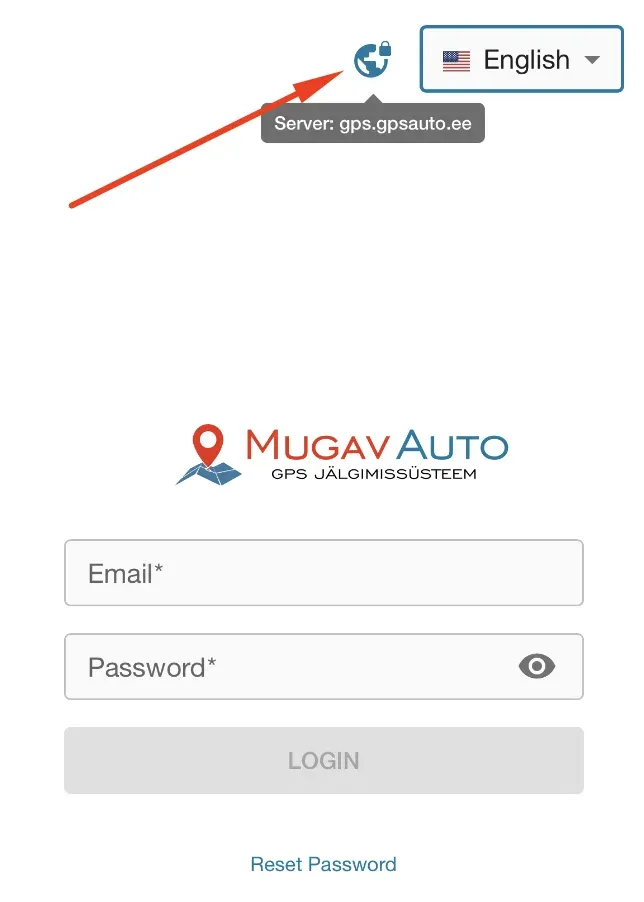
3. Enter our server address
In the Server field, enter the full address https://gps.gpsauto.ee, including https://. Remove any other address already in the field.
Tap SAVE.
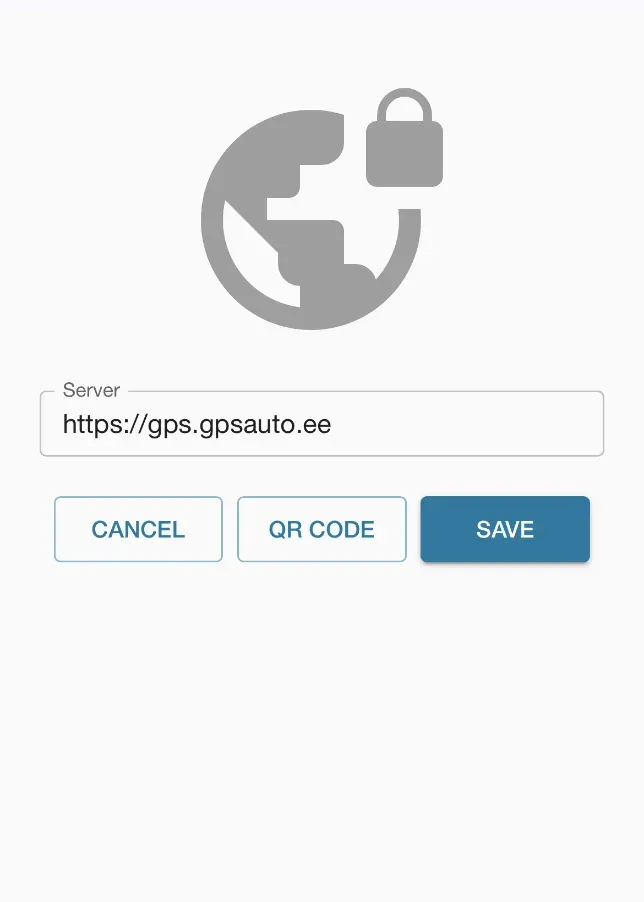
4. Check the logo and sign in
The Mugav Auto logo should appear on the sign-in screen. This means you have opened our system.
If the logo is missing, check the server address. Do not enter your login details or create a new account: the app is connected to a different system.
On the screen with the Mugav Auto logo:
- Enter the email address we used to create your account in Email.
- Enter the password from our email in Password. If you have already changed it, use your new password.
- Tap LOGIN.
The screenshot shows a test email address. Use your own details from our email.
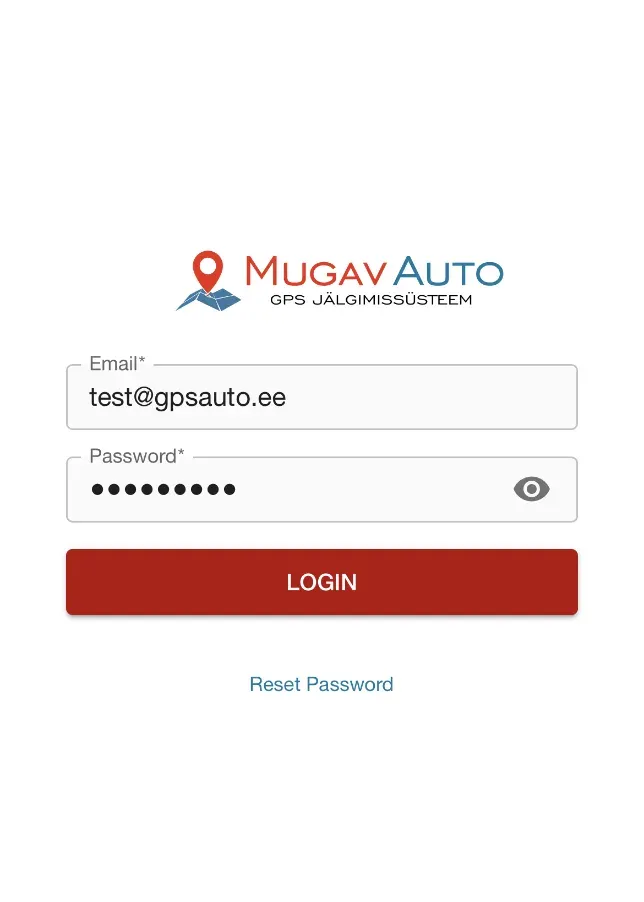
The screenshots show the English interface. Button labels may differ if you have selected another language in the app.
Signing in through a browser
You can open the system in a browser on a computer, tablet or phone.
- Open https://gps.gpsauto.ee.
- Enter your email address and password.
- Click LOGIN.
You do not need to install the app or select a server separately in your browser: opening this address takes you directly to our system.
If you forgot your password
- On the sign-in screen with the Mugav Auto logo, select Reset Password.
- Enter your account’s email address in Email.
- Select RESET PASSWORD.
- Open the email you receive and follow the link to set a new password.
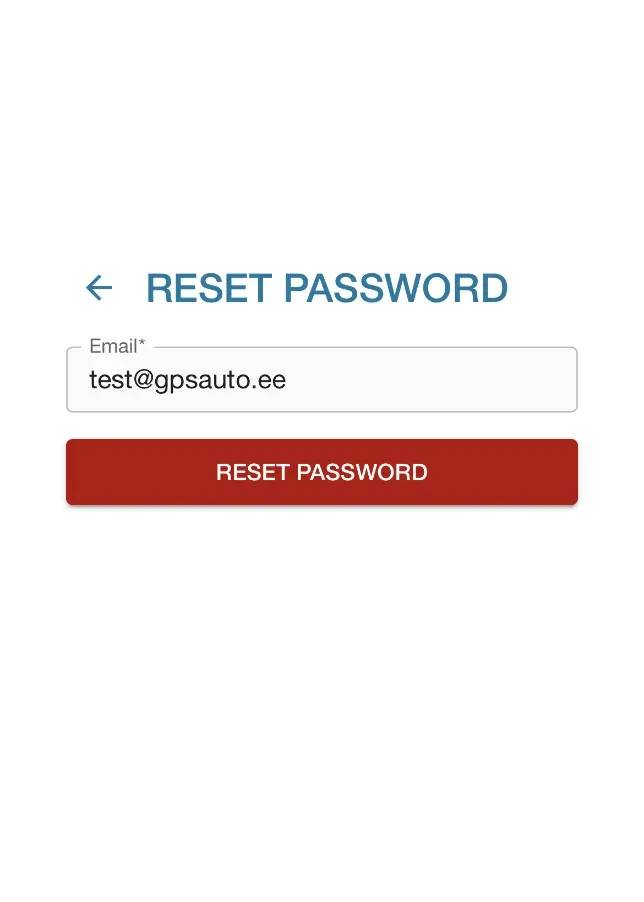
If the email does not arrive, check your spam folder and the address you entered. If you no longer have access to that email account or cannot reset your password, contact us.
If you cannot sign in
First, check that the Mugav Auto logo is on the sign-in screen. If it is missing, check the server address in the app, or open https://gps.gpsauto.ee in your browser.
If you saw the logo but cannot sign in with your details, or cannot see your vehicle after signing in, contact us.
If you cannot find the email with your login details, check your spam folder. For help, email klienditugi@mugavauto.ee or use our contact page. Tell us which step you reached and what the screen says. You do not need to send your password.
After signing in
Select your vehicle in the system to view its location.
You can find other instructions in the guides menu or by using search.